Description
Create a Popup Page Helper On All Your WordPress Pages
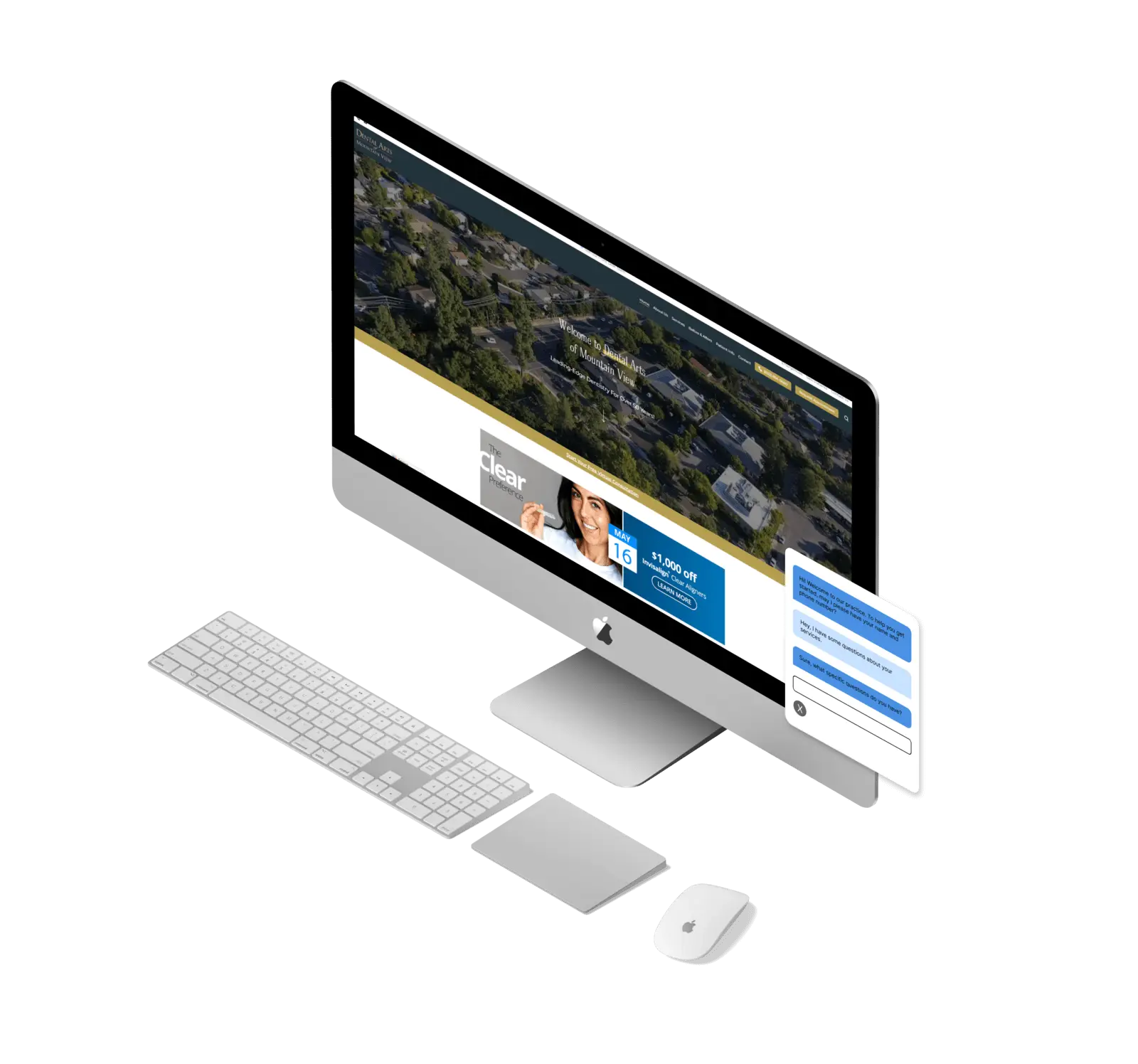
The WordPress Popup Page Helper plugin lets you create and customize your own chat-bot-like popup that is permanently sticky to the bottom left-hand side of your screen. You can customize the image displayed and upload png, jpg, jpeg, and even gifs to make your WordPress popup page helper even more interactive and interesting. The WordPress Popup Page Helper can display plain text, hyperlinked text, and other informative or useful information to help your website communicate better to your target audience.
Choose Pages to Display Popup Helper
Have specific pages that you want to enable you page helper on? That’s exactly the use case for this plugin. Once the plugin is activated and your helper image selected, each page will have a new setting in the classic editor view that allows you to activate your helper on that specific page. The text editor box for the plugin will display the custom message and content if the checkbox on that section for that page is checked. You can add plain text, headers, hyperlinks and more to help to explain specific messages or content on each page. For example:
- Homepage: Help your users understand who you are and what you do, or add your motto, slogan, tagline, mission statement or elevator pitch and let you helper display that message for you. You can even link to a contact page to prompt user to get started.
- Service Pages: Let your helper convey a short message about the benefits of your product or service. Something quick and to the point can help increase conversion rates for your website.
- Contact Page: Offer alternative options to users to get in touch or contact your support or sales team.

Customize Your Icon / Image
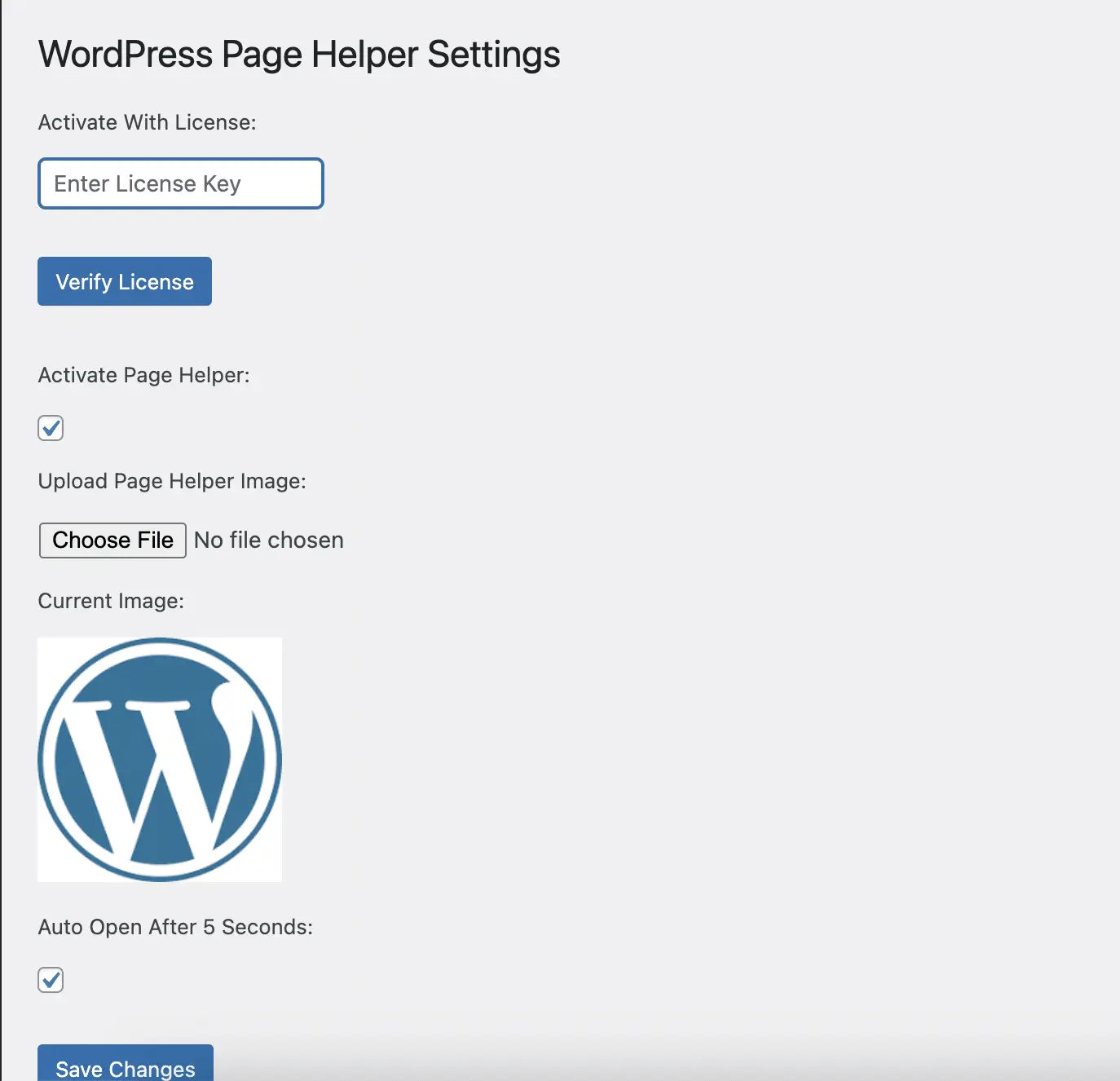
Upload your logo, icon, character, or image to use as your chat-bot-like page helper image. You can simply upload your image to your plugin settings and save. The Plugin will use that image on all of your pages universally. The plugin supports the use of png, jpg, jpeg, and even gifs for an animated icon or mascot to draw even more attention to your page helper. Keep your audience engaged and interested by using an image of a team member, your support team, your logo any other on-brand imagery!
Customize Message Per Page To Highlight Important Information
With WordPress Popup Page Helper you can customize the messages per page to better target users who are visiting specific pages on your website. Enable the helper on custom landing pages for campaigns to get even better conversion rates and increase your ROI. Benefits of the WordPress Popup Page Helper might include:
- Better engagement
- Higher clickthrough rate
- Higher conversion rate
- Longer dwell time
- More pages viewed per user
- Better understanding of your product or service
- and more!

Wordpress Popup Page Helper Plugin FAQs
What does the 'Wordpress Popup Page Helper' plugin do?
The plugin displays an icon or image of your choosing as a chat-bot-like helper on specified pages. Each page can be activated individually and the message customized per page.
What should I do with WordPress Popup Page Helper?
You can help your users navigate your website, understand your products or services, promote clickthrough and conversion and more. You should use WordPress Popup Page Helper to display useful and helpful information per page that you think your users might need as they navigate your site and put added emphasis on the main idea of each page.
Can I choose my own image for the helper?
Yes! You can upload your own image for your helper. The plugin will work with png, jpg, jpeg, and even gif formats.
Where can I find the settings for the plugin?
Once installed, you can find the settings in your WordPress admin dashboard. Go to the ‘WordPress Popup Page Helper’ option under the Tools admin menu. Here, you can configure the plugin settings, including enabling/disabling the plugin.
How do I activate the plugin with a license key?
Upon accessing the settings page, you’ll be prompted to enter your license key. Once entered, click on ‘Verify License’ to activate the plugin.
Where do I find my license key?
Upon purchase of the WordPress plugin, you will have the license key available to you in your account and in your purchase confirmation.
Can I use the plugin without a license key?
A valid license key is required for the plugin to function. This is to ensure security and authenticity of the plugin usage.
How do I remove my license key?
If you wish to remove your license key, go to the plugin’s settings page and click on the ‘Remove license’ link below the ‘Save Changes’ button. This will reset the license key field, allowing you to enter a new key if necessary.
Does it work on other post types like blog posts, products, etc?
Not yet, but that is a feature request that is currently being developed and might be available in the next version.