Who is this for?
Business owners, marketers, new web designers, and entrepreneurs who want to create an impactful website, or implement modals or popups as part of an effective sales pipeline.
What we’re hoping to offer:
- A three-step guide on when you should not use modals
- The best practices to use when implementing modals into your web design
- Important mistakes to avoid with your modals
- How to turn your modal into an asset instead of just an annoyance
Key Takeaways:
- Modals interrupt the user experience and should be used sparingly
- Professional design ensures modals enhance, not harm, user experience.
- Modals should be your last resort for presenting information to your users
Nothing can ruin a visit to a website quite like website popups or their even more annoying cousin: modals. Including modals in your website can make the difference between a sale and a lost client. When used strategically, modals are a powerful tool for enhancing website engagement and user experience. But what is a modal in web design, why do websites still use them, and how can you turn them from an annoyance to an asset for your brand?
But how can you know if you’re using modals the right way or completely ruining your website? As a world-class and award-winning website development company, we’ve learned the effective tricks and UX best practices to make your modals more effective, but most importantly, we know what to avoid. Here is everything you need to know about modals in web design.
What Is A Modal in Web Design?
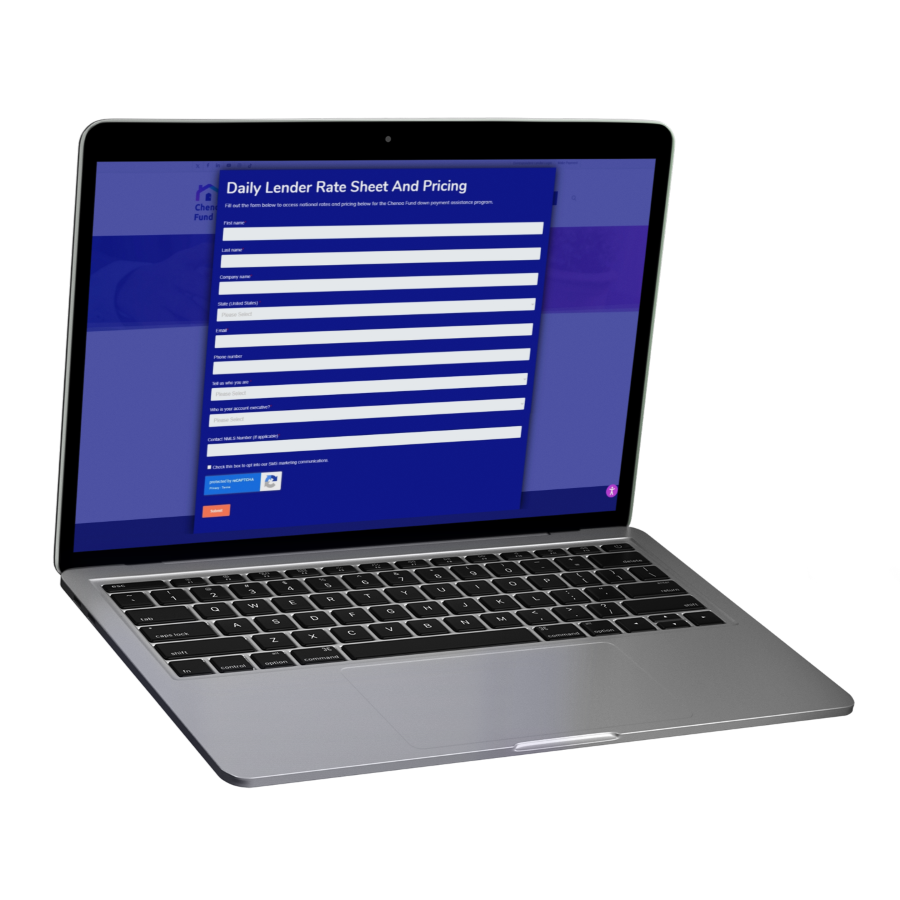
A modal is a window that, when it appears, disables all other content on a webpage until the user completes a specific task. A modal is a type of dialog box, often referred to as a child window, that overlays the main window or main page and prevents interaction with the underlying page content. Some of the most common examples of modals include:
- Windows asking the user to allow cookies
- Asking the user to sign up for a newsletter
- Confirming if the user wants to leave a page if content will be lost
- Alerting the user that they will be signed out of their account due to inactivity
- Confirming a user’s age
Because modals disable the content on the rest of the page, they are extremely disruptive to the user flow and interaction design of a website. When a modal dialog appears, the background content and page content are visually deactivated or dimmed, ensuring the user’s focus remains on the modal until the required action is completed. It breaks their concentration and interrupts whatever activity they were performing.
This makes modal dialogs extremely effective at grabbing a user’s attention and forcing them to perform a specific action before continuing. Modals are designed to keep users on the current page, maintaining context and preventing unnecessary navigation away from the main page or underlying page. For this same reason, they have a reputation of being annoying or even breaking websites.
Why Use Modals?
If modals have such a bad reputation, then why use them at all?
Sometimes visitors miss important information or need help focusing on completing a specific task. Modals are designed to capture the user’s attention and direct user focus to important messages or actions, ensuring that critical information is not overlooked. Modals are effective at getting a user to look at, consider, and complete a specific action before they can move on, even if that action is as simple as closing the modal itself.
Modals minimize distraction and create a digital roadblock. Visual cues such as dimming the background or highlighting the modal content help establish a clear visual hierarchy, enhancing the user’s journey through the website and making it easier to guide users toward the intended action.
This prevents you from getting into legal trouble (asking users to confirm their age or agreeing to your privacy policy or use of cookies), and helps minimize frustration when a setup process or account activation can be complicated or overwhelming if everything is presented to the user at once.
For media, it can be effective at highlighting images and video that might lose their impact if presented with a busy, colorful website. Well-designed modal content and the modal’s content can guide users through image galleries or videos, ensuring a seamless user’s flow and improved engagement.
As with everything in your digital toolkit, modals are a tool that can be extremely effective and helpful when used the right way.
When Should You Not Use Modals?
We follow UX best practices to improve the user experience in every possible way, and this is particularly important when it comes to modals. Overusing modals or having too many modals can frustrate users and negatively impact their experience, so it’s essential to use them judiciously. If you are considering implementing a modal into your website design, here is a quick three-step process you can use to make sure you’re using them in the best possible way.
01. Consider whether the information you want to include in your modal could be better presented in another format.
A modal should be your last resort when it comes to presenting any information or asking your visitor to perform an action. Modals should be used sparingly and only when the content is concise and serves a specific function, such as a subscription sign-up or action confirmation. Consider these questions: Is your information absolutely necessary or legally required?
Can your information be included in a pop-up that doesn’t disable the page? What is the purpose of the information you are presenting to the user, and is that purpose better achieved in a different format?
02. Review the length and user flow of your information.
If you want to present a lot of text to your visitor, ask them to complete multiple steps or fill in multiple fields, or take them away from the original webpage, then do not use a modal. Limit modals, especially on mobile devices, to avoid intrusive experiences, and consider alternative solutions like in-line expansion or collapsible sections for presenting specific elements or specific functions.
Long blocks of text, multi-step processes, or complicated user flows are much better suited for full webpages. This makes it easier for the user to digest the text or input accurate information. It also removes the frustration of locking the rest of the webpage and the implied urgency that a modal usually brings.
Modal windows are small, which limits the accessibility in modals, preventing some users from completing certain tasks at all.
This is especially true if your modal will take your visitor to a different page. If your information might take your user off the current webpage, do not use a modal.
03. Is your information specific to a form field?
Filling in forms and verifying information is already annoying enough, you should not make it even worse by interrupting your visitor with repeated modals if they miss a field or make a mistake. Always enable users to correct errors easily without unnecessary modal interruptions. This information is best presented as an alert, or a notification below the specific field the user missed. In all things, try to minimize the interruptions to the user’s session.
The Best Ways To Implement Modals
Now that you know your information is best suited for a modal, there are a few best practices you should keep in mind.
Remember: the fact that a modal interrupts the user experience and disables the rest of the page is always going to leave a negative impression and frustrate your visitor. That’s why you should do everything you can to minimize that frustration.
Keep user actions as simple as possible. If you are asking your visitor to confirm a selection or important decision, the options should be simple and binary. If you are asking for them to input their email for a newsletter, there should only be one field for them to type in. When including form fields in your modal, ensure user input is validated and provide clear error messages to guide users if they make a mistake.
- Keep buttons binary and unambiguous. If you have a “yes” button, you should have a “no” button. If you have a “next” button, you should have a “previous” button.
- If there is still ambiguity regarding what happens when a user clicks on a button, you should elaborate.
- For example: “Yes, cancel my subscription” or “No, keep my current subscription.”
A modal should appear only when triggered by the user. Modals should not automatically display or surprise the user. They should be predictable and their appearance should make logical sense. Consider using exit intent as a trigger to re-engage users who are about to leave your site.
- Don’t put modals on a timer or automatically display them when a user clicks on a new page.
- The modal should be related to the action the user just performed. Examples include leaving the checkout screen, creating a new user profile, opening a photo album, or cancelling a transaction.
- Rare exceptions include modals that appear when a user first arrives prompting them to accept cookies, or modals that let the user know they will be logged out after inactivity.
Limit required interactions within the modal. Try to keep your information as short and as simple as possible, with only one or two buttons or fields to fill in.
- Keep all the text of your modal visible in one frame. Users should be able to process the information without scrolling.
- Don’t take your user to another page and definitely not to another site (exceptions include an option to read more information, like a privacy policy).
- The user should not have to refer back to the webpage to complete any action within a modal. All information and related actions should be self-contained.
- Don’t include in-text links, if possible.
Modals should present important information, not roadblock your visitors. While a modal always interrupts the user, that interruption should be seen as helpful or cautionary, not a way to strongarm your visitors into a particular action.
- Don’t use modals to prevent users from following external links to a different website. This always results in a poor user experience and achieves nothing positive for your website.
- Consider how the modal can enhance the action the user just performed (confirming information, canceling subscription, etc.), instead of how it can prevent an action they might perform (offering discounts after a certain amount of time on the webpage, limited-time offers, alerts that imply time is running out, etc.)
- Examples of different types of modals include confirmation modal for important decisions, modal prompts for actions like subscribing, media display modals for viewing images or videos, and image gallery modals for showcasing multiple images.
Always keep the content of the original webpage in mind. When a modal appears, the content on a webpage should also pause or freeze. When the user closes the modal window, they should be able to resume their visit where they left off before the interruption.
- Videos and games should pause. Any audio should stop. If the user has smooth scrolling enabled, the page should stop scrolling as soon as the modal appears.
- Carousels and other interactive media should remain static.
- Limit any keyboard inputs to the modal itself. Buttons and fields on the webpage should not respond to keyboard inputs.
- The webpage should not navigate to a different page or refresh.
Make your modal easy to escape. Users should always be able to close or escape a modal easily. Whether this is with a large ‘X’ button or clear buttons, a modal should not feel like a trap. Always provide a visible cross button and allow users to close the modal with the escape key for a smooth user experience. Ensure users can close modals through multiple intuitive methods, such as clicking outside the modal, to enhance usability and prevent frustration.
- Always keep the option to close the modal available and visible.
- Allow users to close a modal with the ESC key.
- Don’t require your visitor to click back through windows to close the modal.
Tips for Effective Modals
By following all the tips and best practices so far, you’ll be able to minimize user frustration and annoyance. But how can you turn your modal from a minor inconvenience into an asset for your brand?
The answer is actually with just a few smart, simple design choices!
All of these are relatively easy to implement but can make a big difference to the overall user experience, your conversion design, any CTA overlays, and more, making them more effective.
- Transition smoothly into and out of your modal. You don’t have to have any kind of animation or fancy introduction, but even just a moment between the screen getting darker and the modal appearing can make the transition less jarring and surprising. Consider fading in/out instead of popping or sliding in/out. Modal pops can be especially useful for specific actions like sign-ups or feedback collection, allowing users to complete tasks without leaving the current page.
- Make your modal contrast visibly with your webpage. This can be accomplished simply by darkening the webpage, but also using different brand colors than those present on the webpage.
- Limit the size of your modal to accommodate all the information without scrolling, but limit the maximum size to 50% of the browser window. When designing, consider different modal sizes to ensure the modal is neither too large nor too small, optimizing usability and user experience. If you can’t fit everything you need in that size, then consider redesigning the modal or making it a separate webpage.
Additionally, always clearly define the modal’s purpose so users understand its intent and can navigate its content effectively. This enhances accessibility and ensures the modal meets user needs.
That’s it! And the good news is that once you’ve designed the perfect modal, you can re-use it multiple times without starting over from scratch.
If you want to see how a modal works with a brand designed from the ground-up to help brands like yours reach their business goals and achieve scalable and reliable sales growth, consider working with Big Red Jelly!
Frequently Asked Questions About Modals in Web Design
If modals ruin the user experience so much, can I just not use them?
In a perfect world, websites would not have to use modals at all. Unfortunately, we’re human, and we miss important information and make mistakes. Modals can be essential for making sure critical information is seen and any errors are corrected to prevent headaches later on. The wise use of modals shows that you care about accuracy and taking care of your customers.
How are modals different from pop-ups?
While both can be extremely annoying, pop-ups differ from modals primarily because they still allow a user to interact with the rest of the page. Modals prevent any action on the page until the user dismisses the modal itself.
Visitors to my website usually leave after a certain number of minutes. Can I create a modal that appears around that time to make them stay longer?
We strongly recommend against doing this as it negatively impacts the user experience and will not improve conversion rates.
A better option would be to create an unobtrusive pop-up that appears at that time with some kind of incentive (a coupon code, a prompt to speak to an agent). This eliminates the frustrations while still presenting useful information.
Why should I use a modal when presenting media instead of just showing it on the webpage?
Modals disable the rest of the webpage and allow you to darken the page as well, highlighting the content within the modal and making it stand out. If you have an album or short video you want the user to pay close attention to, opening that media in a modal is a fantastic way to minimize distractions and prevent the user from scrolling away accidentally.
Do I need to adjust my modals for the mobile version of my website?
Yes! Because mobile screens are much smaller than computer screens, modals should be used much more sparingly. If the typical journey your visitors take on your website relies on multiple modals, then consider redesigning your website for mobile to eliminate as many of them as possible.
User behavior differs between mobile and desktop. Many users prefer to conduct product research on mobile before completing the purchase on desktop. Make sure you understand your customers before implementing modals on mobile. You may find out that you don’t need any at all!