
Follow the steps below to start your onboarding process.


Top Branding Firm
50Pros

Top Web Design Company
Clutch

Top Reviewed Branding Company
The Manifest
01 | Add Big Red Jelly To Your Google Analytics
- Sign in to analytics.google.com
- Navigate to Admin Panel
- Select the Account and Property that you need to share with Big Red Jelly
- Access “Account Access Management”
- Add a New User for the email grow@bigredjelly.com
- Assign Permissions: Editor or Administrator
02 | Add Big Red Jelly To Your Google Ads Account
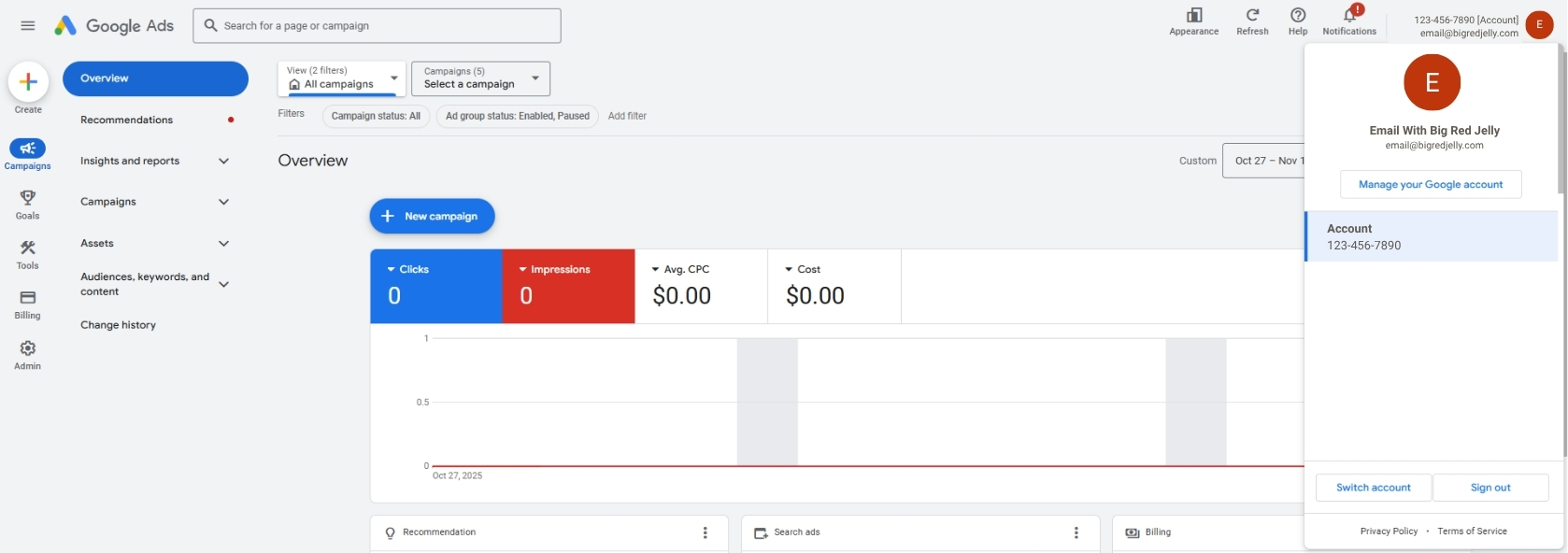
- Sign into ads.google.com
- Click your profile picture in the top right corner
- Your customer ID will be listed under “Account Information”
- ###-###-####
- Send this ID to your BRJ Strategist
- The admin of the account will receive an email to accept BRJ’s manager account access
03 | Add Big Red Jelly To Your Google Search Console
- Sign in to search.google.com/search-console
- Click the settings icon.
- Click on “Users and Permissions”
- Click “Add User”
- Add grow@bigredjelly.com as an owner user on your account.
04 | Invite Big Red Jelly To Your Google My Business
- Sign in to business.google.com
- Search/select the business that you want to share with Big Red Jelly
- Click on the three vertical dots next to your business
- Click “Business Profile Settings”
- Click “People and Access”
- Add grow@bigredjelly.com as an owner

05 | Add Big Red Jelly To Your Facebook/Meta
- Go to Business settings in Business Manager or Settings in Meta Business Suite.
- Below Users, select Partners.
- Click Add. Select Give a partner access to your assets.
- Enter your partner’s business ID. Click Next.
- Choose the business assets you want to assign to your partner. For each asset, choose the level of access to give them: full control or
- partial access. If assigning partial access, choose which tasks you want your partner to work on.
- Click Assign assets
06 | Invite Big Red Jelly To Your Google Tag Manager
- Access Google Tag Manager: Log in to your Google Tag Manager account.
- Navigate to User Management:
- Click “Admin” in the top left corner.
- Select “User Management” under the Account level settings.
- Add a User:
- Click the “+” button to add a new user.
- Enter “grow@bigredjelly.com”
- Set Permissions:
Select the desired permission level (e.g., “Administrator”).
Optionally, set container permissions for each container the user needs access to.
Thanks!
That’s everything we need to get started!
Dive In and Explore Our Brand Work!

'.get_the_title().'
GOAVi

'.get_the_title().'
Black Optix Tint

'.get_the_title().'
Dandyplans

'.get_the_title().'
Tuesday Made

'.get_the_title().'
United Franchise Group

'.get_the_title().'
Primal Basics
Full Portfolio

Subscribe to The Current for the Latest Branding Tips, Tricks, and Trends
The Current keeps you informed on the latest trends in brand building, online marketing and business strategy. Get our tips, tricks, tools and advice straight to your email inbox. Subscribe today, learn, apply and enjoy!